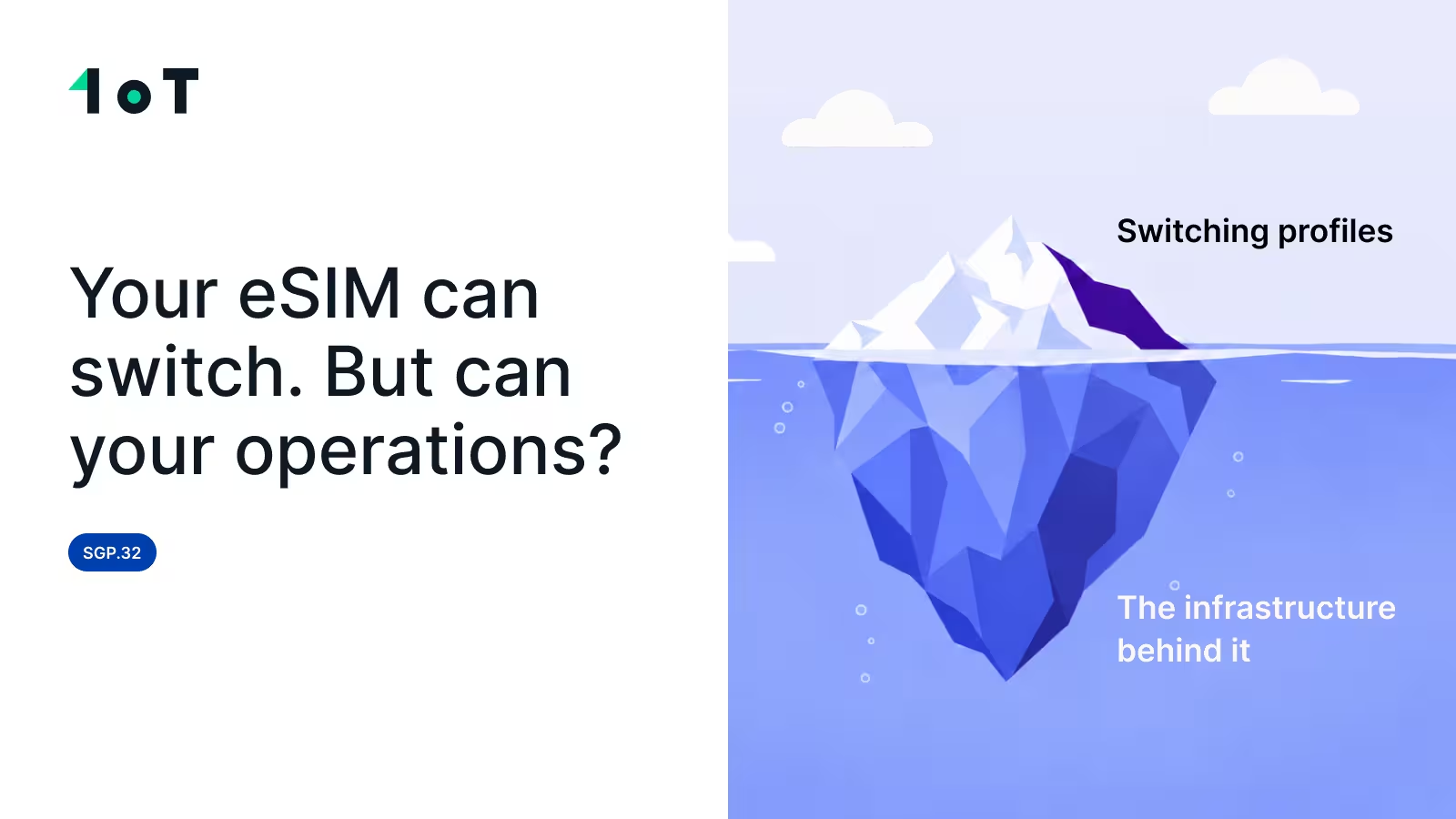
Your eSIM can switch operators. But what will your team have to rebuild?
SGP.32 allows you to switch an operator profile remotely. It does not automatically preserve your APIs, alerts, reports, billing, permissions, or support workflows.
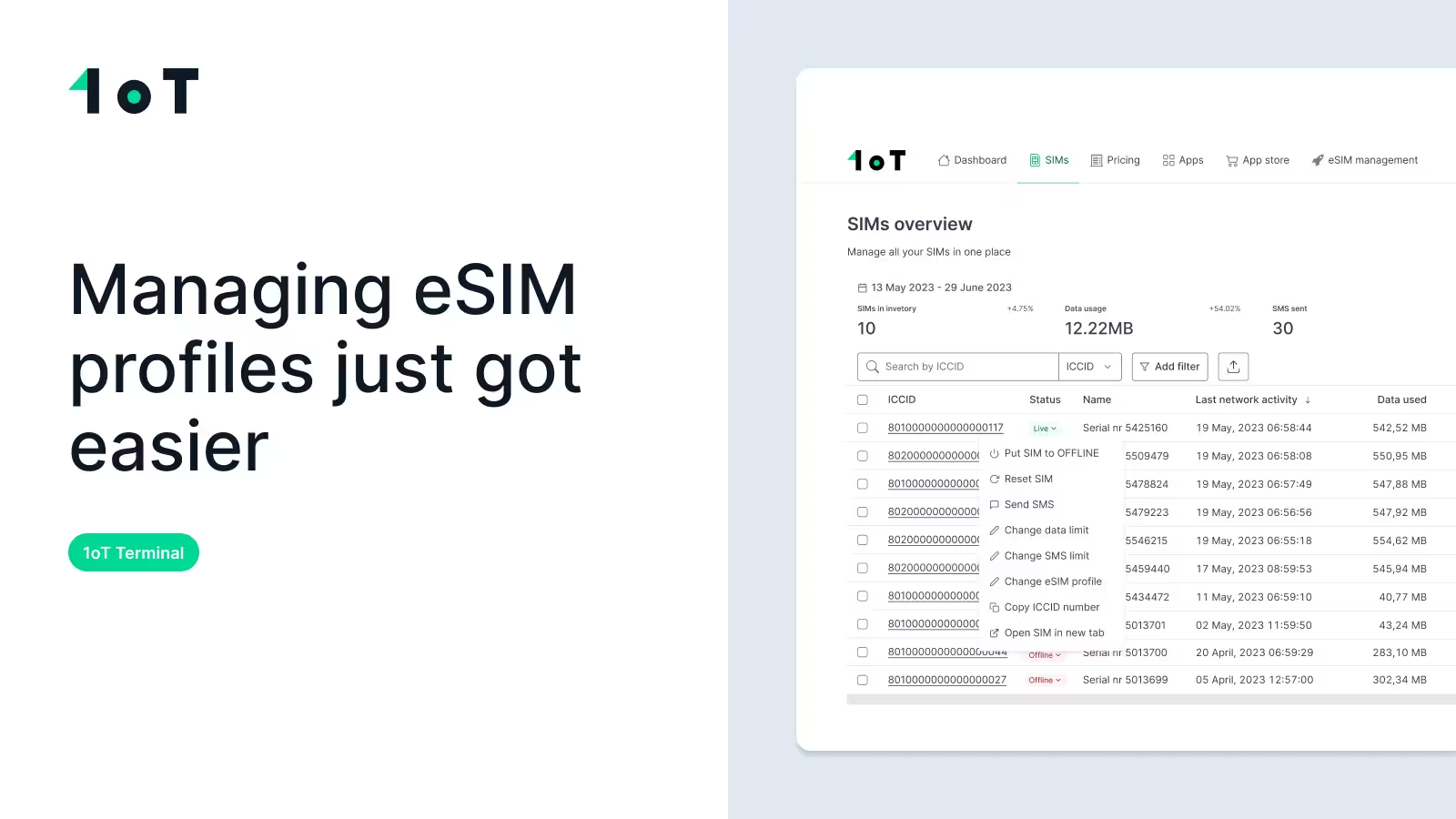
Managing eSIM profiles just got easier. See how 1oT Terminal simplifies telecom profile changes, from download to activation, across your IoT fleet.

CPO
Managing connectivity across thousands of IoT devices requires flexibility, visibility, and control. Your eSIM management platform should deliver all three.
With the latest update to 1oT Terminal, we've streamlined the eSIM transaction flow even further to give you a more direct way to manage telecom profile changes. You can now initiate transactions straight from your SIMs view, choose the profile you need without unnecessary steps, and manage the process from one place.
The redesigned flow works with both SGP.02 and SGP.32, bringing two different eSIM technologies under the same management experience.
Here's what the redesigned eSIM transaction flow means for your day-to-day connectivity management:
And while the interface has changed, the essentials remain: you can initiate transactions in bulk, download profiles for later use, or download and enable them as part of the same operation.
Want to see it in action? Watch Mikk walk through the new transaction flow using a real demo device in the video below.
Prefer reading? Keep scrolling for the step-by-step breakdown.
Previously, initiating an eSIM transaction meant starting with the telecom profile comparison process. Useful when evaluating your options, but an unnecessary detour when you already knew what you needed.
Not anymore.
Open the SIMs view in 1oT Terminal, where you can see your SIMs alongside their connectivity details, including current session status and last activity.
Find the SIM you want to manage and select Change profile.
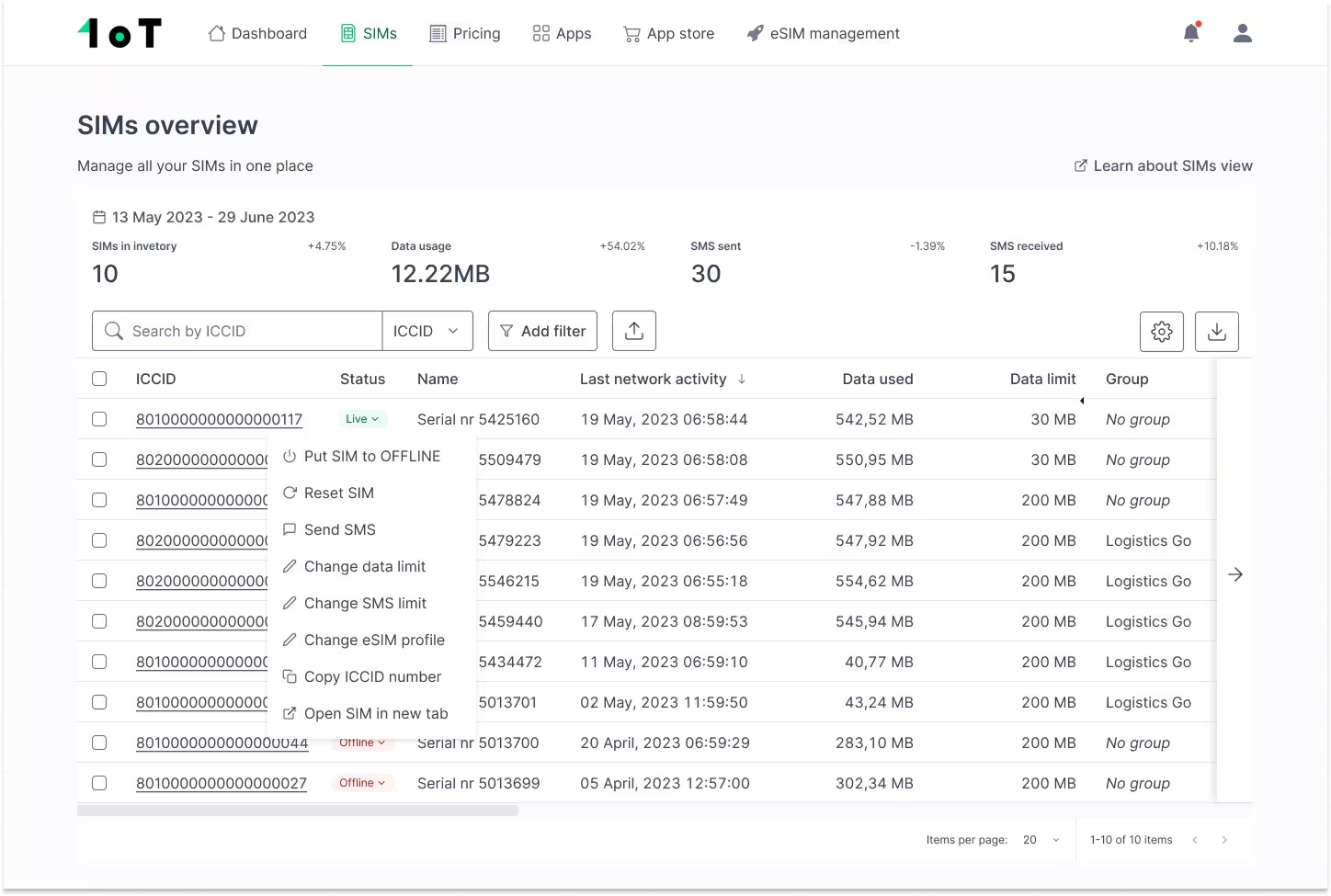
Need to update multiple devices? You can initiate transactions in bulk, too. For larger deployments, you can narrow down your selection using EIDs, SIM names, groups, tags, or current telecom profiles. You can also upload a list of SIMs to select exactly which devices you want to include, rather than going through them individually.
You can also use the fleet overview to see which telecom profiles are installed and active, including devices with multiple downloaded profiles. Filter your eSIMs or customize the information displayed to get a clearer picture of how connectivity is configured across your fleet.
This gives you a clearer picture of your devices' connectivity before making changes, without all the extra back and forth.
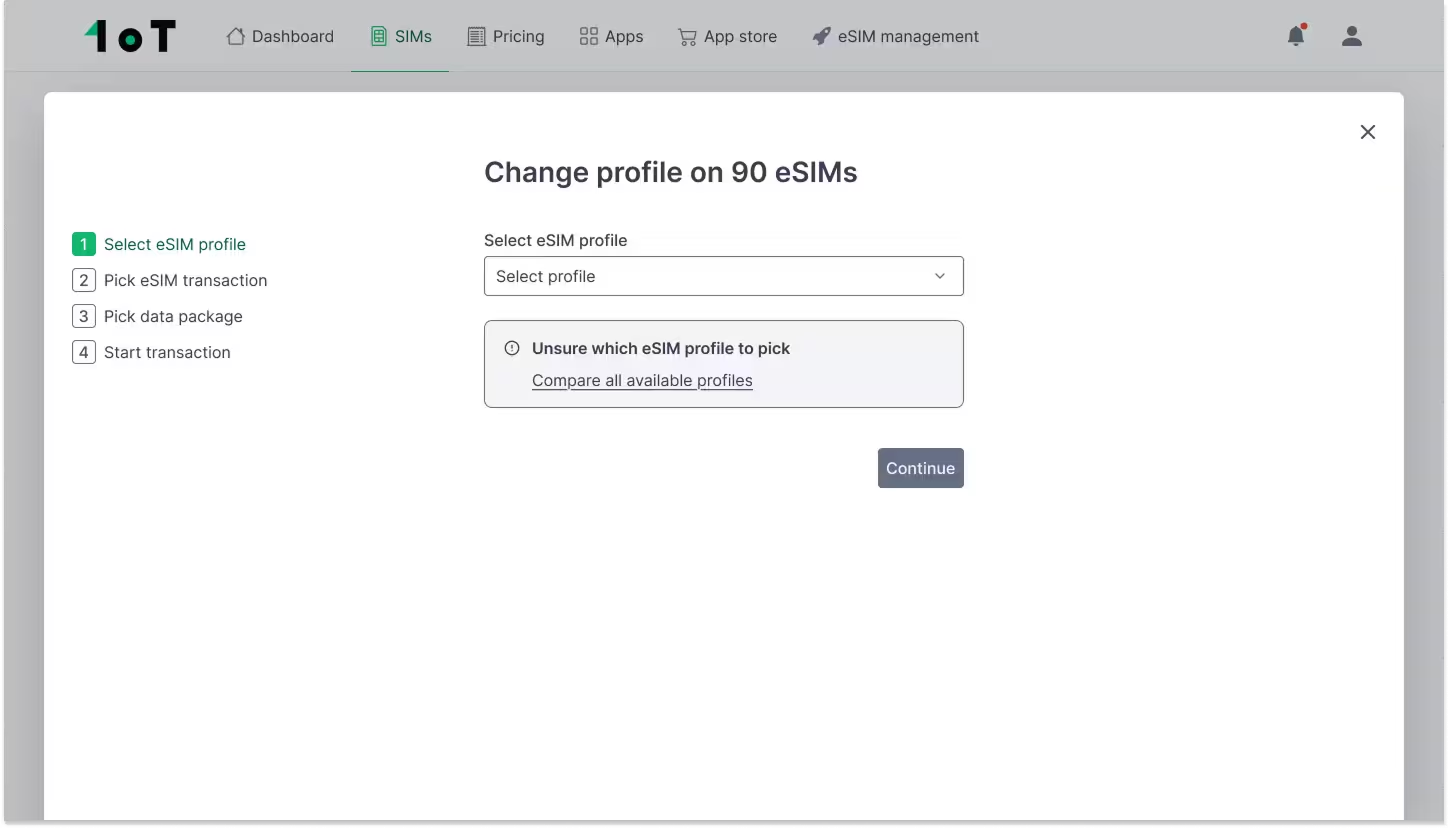
Next, select the telecom profile you want to use.
If you already know which profile your deployment needs, you can select it directly and continue.
Still weighing your options? You can use 1oT Terminal's telecom comparison tool to explore available profiles before making a decision.
You can evaluate available profiles based on coverage, network technologies, data and SMS pricing, and supported Terminal capabilities to understand which option best fits your deployment.
For example, if your devices operate across Estonia, Latvia, and Lithuania, you can focus on those markets and compare available networks, RATs (radio access technologies), and country-specific connectivity costs.
You can also factor in your devices' expected monthly data consumption to get a better picture of what different profiles might cost you.
The cheapest telecom profile isn't always the smartest choice. Coverage, hardware compatibility, and deployment requirements matter just as much.
Before rolling out eSIM transactions across thousands of devices, there's one thing worth checking: whether your hardware can actually handle them.
The testing functionality in 1oT Terminal helps verify compatibility between your cellular module and eSIM by running through essential profile operations, including downloading, enabling, disabling, and deleting telecom profiles.
This helps catch compatibility issues early, before they become a problem across thousands of deployed devices.
Before performing eSIM transactions across a larger fleet, new customers are required to complete an automated compatibility test using their cellular module and a 1oT eSIM. Once the test is successfully completed on one device, eSIM profile transactions are unlocked across their entire SIM fleet.
Does that mean you need to repeat the test before every transaction? Not at all. Once your hardware and eSIM configuration have been validated, you can manage profile changes at scale without repeating the same test. Testing becomes relevant again when introducing new hardware or changing your configuration.
After all, discovering a compatibility issue during testing is one thing. Discovering it when thousands of devices are already deployed can turn into an operational nightmare.
Once you've selected your telecom profile, you have two options:

This distinction is particularly useful when managing large IoT deployments. You can get new telecom profiles ready in advance, without changing the connectivity your devices are already relying on. No need to rush the switch.
Next, select the data package associated with your chosen telecom profile.
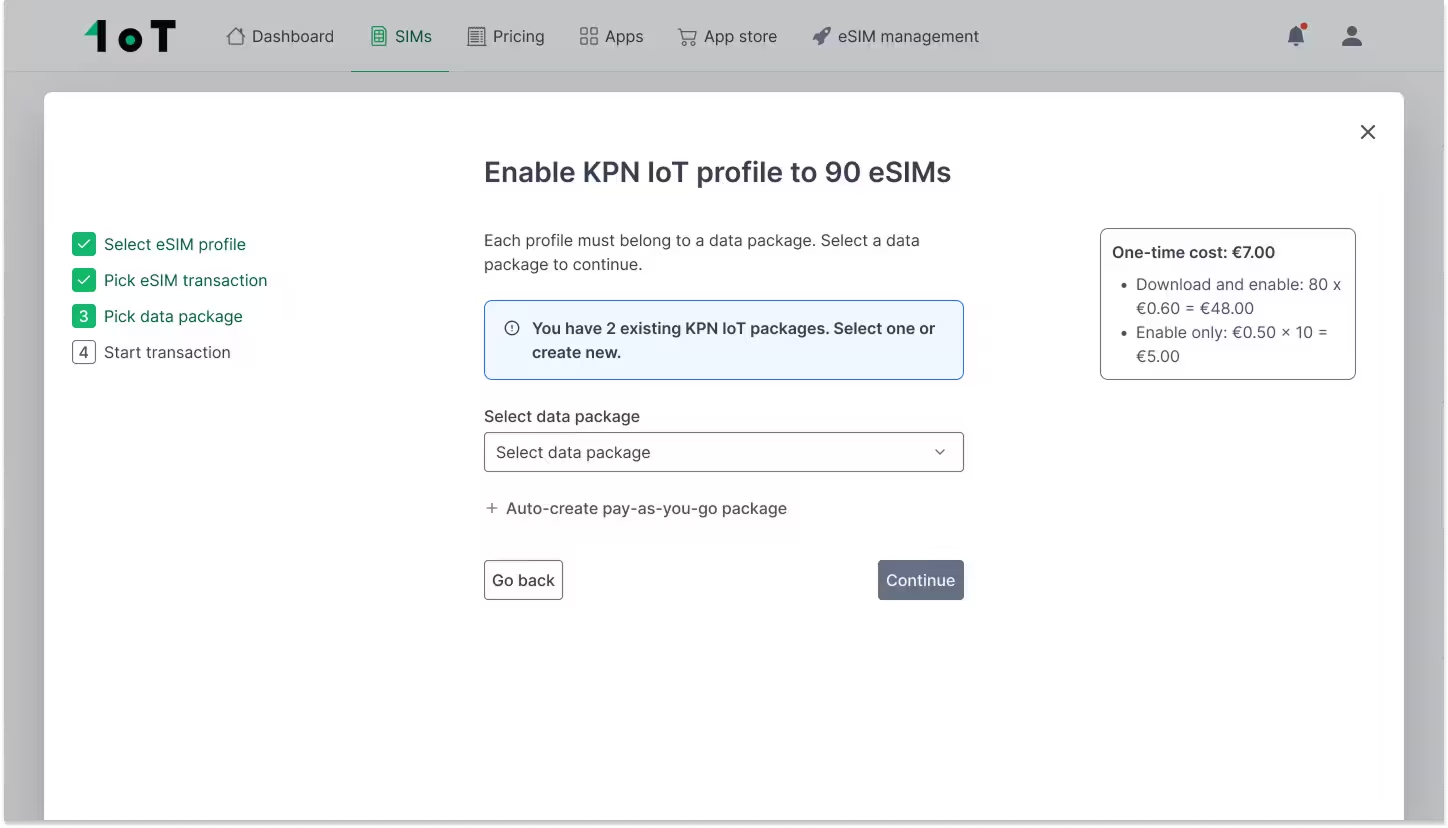
Depending on the telecom profile you've selected, you may have different data package options, including pay-as-you-go pricing or monthly packages with a predefined data allowance. You can also create new packages and compare how different data commitments affect your connectivity costs.
For companies managing devices with different consumption patterns, having the right data package can make a significant difference to ongoing connectivity costs.
After selecting your data package, Terminal gives you a full overview of the transaction, including the selected SIMs, applicable fees, and estimated costs. You can also review country-specific pricing where available, so you know what to expect before confirming.
Everything checks out? You're ready to go.
When you confirm the transaction, 1oT Terminal prepares the new telecom subscription and works with 1oT eSIM Core to initiate the profile operation on your device.
How the profile download starts depends on the eSIM technology you're using.
With SGP.02, the process is triggered by a secure SMS, initiating the profile download process.
With SGP.32, the device can periodically check for pending operations. For example, if it's configured to check every minute, the download can begin at the next check-in.
Different technologies, same transaction experience in 1oT Terminal.
For larger fleet transactions, 1oT Terminal also flags eSIMs that aren't eligible for the requested operation, so you know which devices need attention before proceeding.
After a successful download, you'll find the new profile under the SIMs tab in the SIM's detail view.
If you choose Download rather than Download and enable, the new profile will be installed on the eSIM, but your device will continue using its existing connectivity until you decide to enable it.
With the new profile downloaded, it's time to make the switch.
From the SIM detail view, open the SIMs tab, select the downloaded profile, and initiate the enable operation.
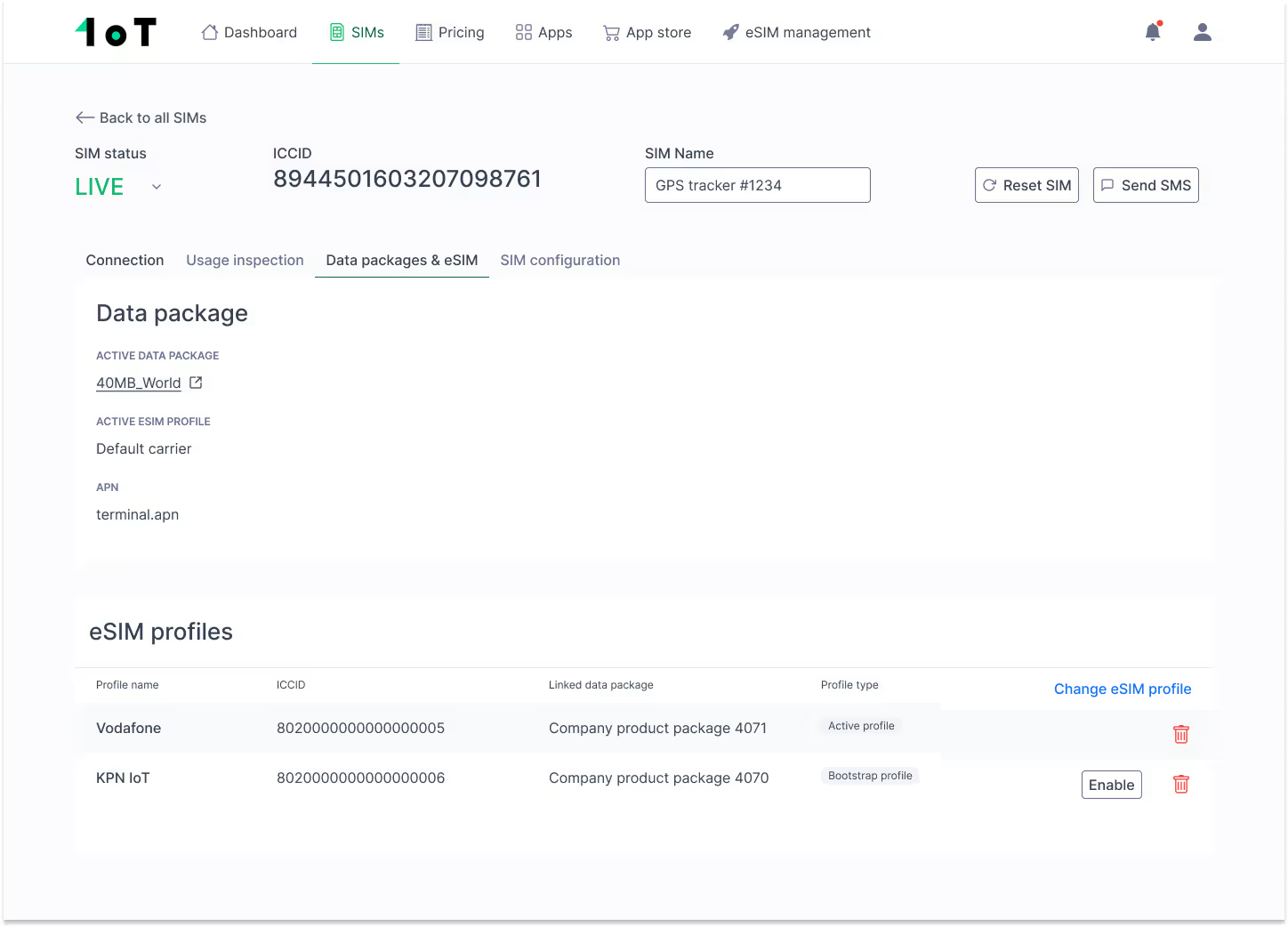
Terminal will show you the transaction details one last time before confirming. Give the go-ahead, and 1oT eSIM Core will take care of enabling the new profile on your device.
Here's an important distinction: a profile being enabled on the eUICC doesn't automatically mean the device has successfully connected to the network.
Although SGP.02 and SGP.32 work differently behind the scenes — SGP.02 relies on the SM-SR, while SGP.32 uses the eIM — both manage profile activation and report the outcome back to 1oT Terminal, so you can see when the operation has been completed successfully.
If you're curious about what happens behind the scenes, you can take a closer look at how the eIM works and why it matters for IoT eSIM.
When the operation completes successfully, 1oT Terminal updates the SIM overview to reflect the newly active telecom profile and its associated data package.
And that's it. You can check the transaction result and your device's connectivity status right where you initiated the profile change.
IoT deployments don't stand still, and neither should your connectivity.
As your business expands into new markets and your connectivity needs evolve, the telecom that made sense when you first deployed your devices might not be the best fit a few years down the line.
With 1oT Terminal, you can manage telecom profiles, make connectivity changes, and keep track of every transaction from one place, and without rebuilding your operational workflow every time your connectivity requirements change.
Want to explore eSIM management for your IoT deployment?
Talk to 1oT about the connectivity, integrations, and support your fleet needs.
Get in TouchSGP.32 allows you to switch an operator profile remotely. It does not automatically preserve your APIs, alerts, reports, billing, permissions, or support workflows.
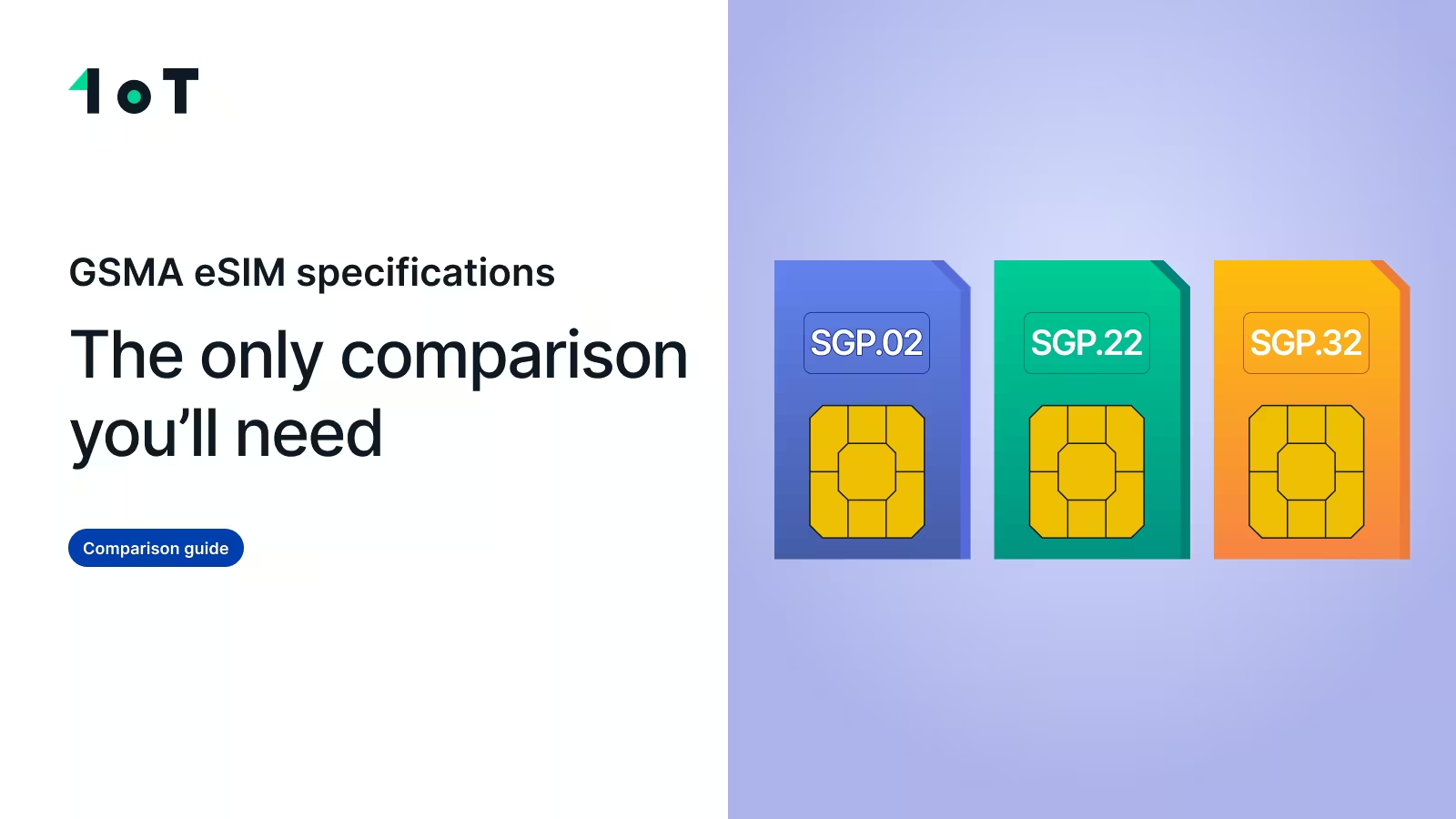
SGP.02 vs SGP.22 vs SGP.32: a practical guide to GSMA eSIM specifications to help you choose the right one and avoid hidden operator lock-in.
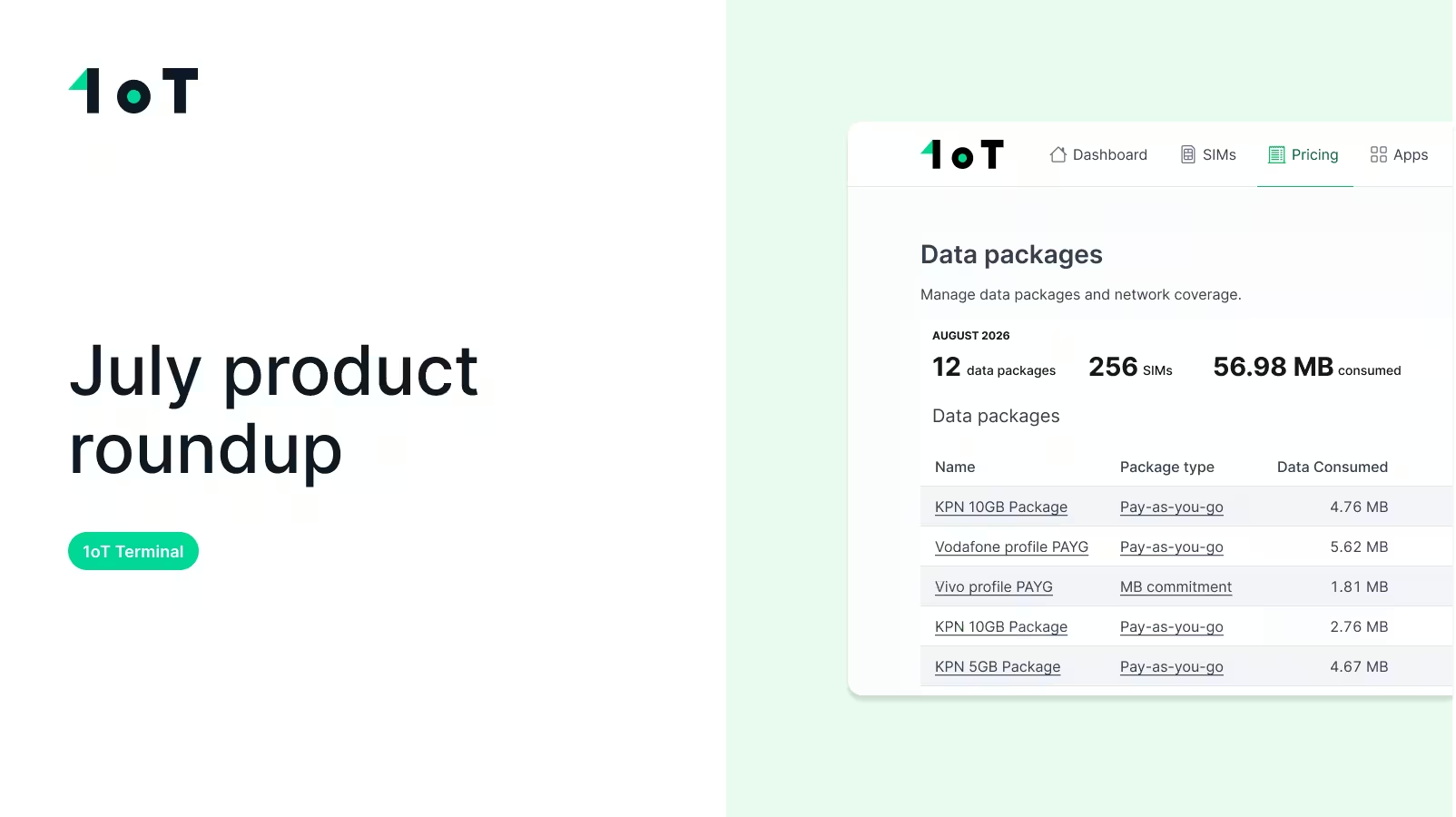
IoT connectivity is changing fast, and 1oT Terminal is adapting to a future where different SIM technologies coexist within the same deployments. Discover how.
how-to-manage-esim-profile